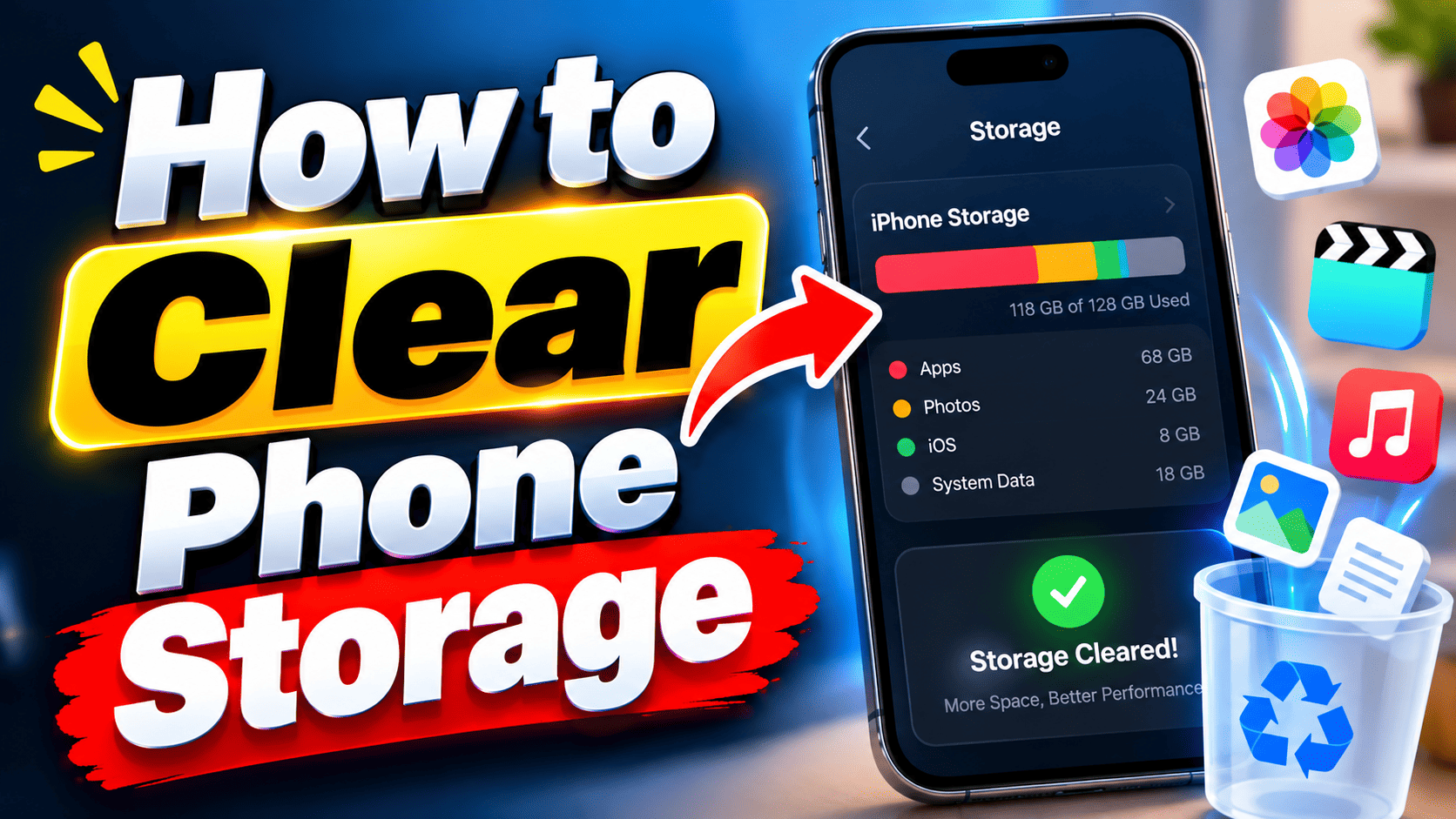
Your phone tells you it’s full right as you’re trying to take a photo, save a boarding pass, or install an update. It’s one of the most common (and most avoidable) frustrations in daily phone use, and the fix usually takes less time than the frustration itself.
Clearing storage isn’t about deleting things at random and hoping for the best. Android and iPhone both include built-in tools that show you exactly what’s taking up space and let you remove it safely — without losing photos, app data, or account access. This guide walks through those tools first, then covers the manual cleanup steps that make the biggest difference.
Check What’sActually Using Your Storage First
Before deleting anything, look at the breakdown. Guessing wastes time; the storage screen tells you precisely where your space went.
On Android: Open Settings, then tap Storage. You’ll see you device broken down by category — apps, photos, videos, audio, downloads — with the biggest space users listed first. Tapping “Free up space” lets you browse by category and select files to delete.
On iPhone or iPad: Go to Settings > General > iPhone Storage. This screen breaks your content down into categories like apps, photos, media, and mail, and shows storage recommendations for reclaiming space.
This one check usually reveals the real culprit — often photos/videos or one or two oversized apps — rather than the dozens of small things people instinctively delete first.
The Fastest Wins: Apps You Don’t Use
Apps are often the single biggest recoverable chunk of storage, and both platforms now handle this without forcing you to lose your data.
iPhone: Apple’s offload feature removes an app itself while keeping its documents and settings in place. You can turn this on automatically by going to Settings, tapping Apps, then App Store, and enabling “Offload Unused Apps,” which removes apps you’re not using while keeping your data intact. When you need the app again, reinstalling restores everything as it was. You can also offload or fully delete individual apps from the Storage screen.
Android: A similar concept exists through app archiving. From the Play Store, tapping your profile photo, then Settings, then General, lets you turn “Automatically archive apps” on or off, and you can also manually archive apps you rarely use — the app icon stays put, and reinstalling from Google Play brings your data back.
Neither of these deletes your information. They’re closer to “put it in storage” than “throw it away,” which makes them low-risk first moves.
Photos and Videos: Where Most Space Disappears
Camera rolls grow quietly. Burst shots, screenshots, and duplicate downloads pile up for months before anyone notices.
If you back up to the cloud, both platforms let you remove the local copies without losing anything:
- Android: In Google Photos, tap your profile photo, then “Free up space on this device,” and the app shows how much space you’ll recover before removing already-backed-up copies from the phone — the photos remain accessible in the app and at photos.google.com.
- iPhone: Apple’s Photos app offers a similar “Optimize iPhone Storage” setting under Settings > Photos, which keeps smaller versions on-device while full-resolution originals stay in iCloud.
Worth checking before you back up in the first place: Google Photos gives a choice between “Original quality” and “Storage saver” for backups, with storage saver slightly compressing photos and videos to save space. If resolution matters less to you than free space, storage saver is the more space-efficient default.
Messaging Apps Quietly Eat Storage Too
WhatsApp, in particular, is a common hidden storage hog because of media auto-downloads and backups. On Android, WhatsApp backups count toward your Google Account storage, and videos usually take up the most space in those backups — you can exclude them going forward from WhatsApp’s Settings > Chats > Chat backup menu. If you’re not going to restore an old backup, the Google One app lets you delete a WhatsApp backup directly, under Storage > Free up account storage > Clean up other items. Just be aware that deleting a backup is permanent, so don’t do this if you’re mid-phone-switch.
What to Skip (For Now)
Force-closing apps to “free up memory” is a common habit, but it mostly affects performance in the moment, not storage — running RAM and stored disk space are different things. Deleting individual cache files app-by-app can help marginally, but on both platforms, using “Clear storage” inside an app’s settings is closer to a fresh reinstall and will remove that app’s saved logins and preferences, not just temporary junk. Use it only as a last resort for a specific misbehaving app.
Common Mistakes People Make
- Deleting photos before confirming a backup finished. Check that the cloud upload icon or status shows “backed up” before removing local copies.
- Turning off automatic backups to “save space,” then losing photos when a phone is lost or damaged. The local copy and the backup are solving different problems.
- Force-stopping apps expecting a storage improvement. It doesn’t reclaim install size; only offloading, archiving, or deleting does.
- Ignoring one huge app instead of many small ones. A single game or video app can easily be several gigabytes — check the storage breakdown before combing through small folders.
A Quick Maintenance Habit
Freeing space once doesn’t keep it free. A five-minute monthly check — opening the Storage screen, clearing the Photos app’s “Free up space” prompt, and glancing at which apps have grown — prevents the sudden “storage full” alert from showing up at the worst possible moment.
Frequently Asked Questions
Will offloading or archiving an app delete my saved data or game progress?
No. Both offloading (iPhone) and archiving (Android) are designed to keep the app’s documents and data in place; only the app itself is removed, and reinstalling restores it.
Is it safe to delete photos from my phone if they’re backed up to the cloud?
Yes, as long as the backup has actually completed. Confirm the sync status in Google Photos or iCloud Photos before removing local copies.
Does clearing an app’s cache delete my login or saved settings?
Usually not — cache clearing removes temporary files. However, using the “Clear storage” or “Delete data” option (rather than just clearing cache) does remove saved logins and settings for that app.
Why does my phone say storage is full even after I delete things?
Storage screens don’t always refresh instantly, and some deleted items sit in a “Recently Deleted” or trash folder for a set period before space is actually reclaimed. Emptying that folder (in Photos or Files apps) finishes the job.
Does deleting a WhatsApp backup delete my chats on the phone?
No, deleting a cloud backup doesn’t touch the chats currently on your device — but it does mean you can’t restore from that backup later if you set up WhatsApp on a new phone.
What actually takes up the most space on a typical phone?
It varies by person, but photos/videos and a handful of large apps are the most common answer for most people — which is why checking the storage breakdown first, rather than guessing, saves the most time.
Before You Go
If storage keeps filling up despite regular cleanup, it may be worth comparing cloud storage plans (Google One or iCloud+) against simply upgrading your next phone’s storage tier — the right call depends on how you actually use your device day to day.