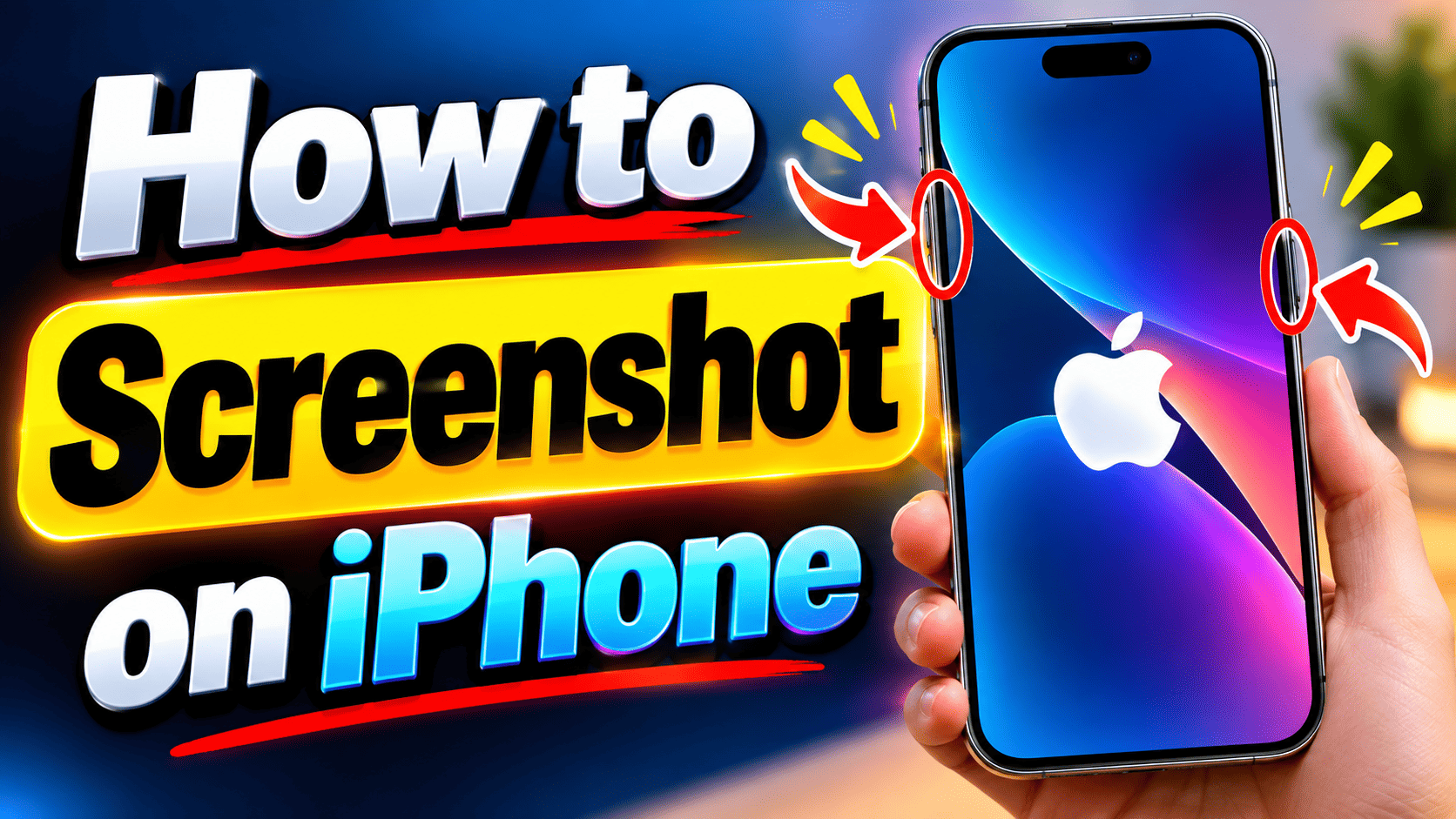
Buttons stuck, screen cracked, or hands full? Here’s every working way to screenshot on iPhone in 2026 — plus the trick most people never find.Hand pressing side and volume buttons to screenshot on iPhone with screen flash visiblePressing the side and volume buttons together is still the fastest way to capture your iPhone screen.Buttons stuck, screen cracked, or hands full? Here’s every working way to screenshot on iPhone in 2026 — plus the trick most people never find.My screen cracked last winter, right along the volume rocker. For about two weeks, pressing Volume Up did nothing except make a faint clicking sound. That’s when I actually learned every other way to grab a screenshot on an iPhone — because the “obvious” one wasn’t an option anymore.
Most people know exactly one method. It’s fine, until it isn’t.
The Standard Method (Works on Every Recent iPhone)
Press the side button and the Volume Up button at the same time, then let go immediately. You’ll see a quick white flash, and a thumbnail drops into the bottom-left corner of the screen.
Don’t hold the buttons down — that triggers a power-off screen or Siri instead. It’s a snap-and-release motion, not a press-and-hold one.
If you’re on an older iPhone with a Home button (like the SE 2nd or 3rd generation), swap Volume Up for the Home button: press Side + Home together, then release.
Quick answer: On any Face ID iPhone, press Side + Volume Up simultaneously and release fast. On Home button models, press Side + Home instead.
When the Buttons Don’t Cooperate
This is the part nobody teaches until they need it.
AssistiveTouch puts a small floating button on your screen that can trigger a screenshot with one tap. Go to Settings → Accessibility → Touch → AssistiveTouch, turn it on, then tap the floating icon and choose Device → More → Screenshot. You can even set a single tap on that button to fire the screenshot directly — no submenu digging required.
Back Tap is the one most people have never heard of, and it’s genuinely my favorite. Go to Settings → Accessibility → Touch → Back Tap, then assign Screenshot to either Double Tap or Triple Tap. Now tapping the back of your phone — case on, no problem — captures the screen. I use double-tap for this and triple-tap for a different shortcut, and it took maybe a day to build the muscle memory.
Siri works too, if your hands are full or the phone is mounted somewhere. Just say “Hey Siri, take a screenshot.” It’s not instant — there’s a beat of lag while Siri processes it — but it works every time.
From Experience: The Broken-Button Workaround
When my volume button stopped responding, Back Tap became my default for about six weeks until I got the screen fixed. What I didn’t expect: I kept using it even after the repair. Double-tapping the back of the phone is honestly faster than fumbling for two buttons at once, especially one-handed. If you screenshot often, set this up now, not after something breaks.
Capturing a Full Web Page, Not Just What’s Visible
If you need an entire article, recipe, or long thread — not just what fits on screen — take a normal screenshot first, then tap the thumbnail that appears in the corner. At the top you’ll see a Full Page option next to the standard screenshot. Tap it, and Safari (or supported apps) will stitch the whole scrollable page into one capture, saved as a PDF into your Files app.
This only works inside apps that support scrollable capture — mainly Safari and Notes. It won’t work on your Home Screen or in most third-party apps.
Where Your Screenshots Actually Go
Every screenshot lands in Photos → Albums → Screenshots, automatically sorted, no setup needed. If you can’t find one, check there before assuming it failed — a lot of “my screenshot disappeared” panic is really just “I didn’t scroll to the right album.”
Common Mistakes to Avoid
- Holding buttons too long instead of a quick press-and-release, which triggers the power menu or Siri instead of a screenshot
- Forgetting Back Tap exists and giving up on hands-free screenshots entirely
- Assuming Full Page works everywhere — it’s mostly a Safari and Notes feature, not universal
- Not checking the Screenshots album before assuming the capture didn’t save
- Ignoring the markup tools on the thumbnail preview, which let you crop and annotate before the image even leaves your clipboard
Editing Right After You Capture
Tap the thumbnail the moment it appears and you’ll get Markup tools instantly — pen, highlighter, text boxes, and a crop handle. This is worth doing before you forget you took the screenshot at all, since thumbnails disappear from view after a few seconds (though the image still saves either way).
Step-by-Step: Setting Up Back Tap (Worth the 60 Seconds)
- Open Settings
- Tap Accessibility
- Tap Touch, then scroll down to Back Tap
- Choose Double Tap (or Triple Tap)
- Select Screenshot from the action list
- Test it by tapping the back of your phone twice, firmly
Frequently Asked Questions
Why isn’t my iPhone screenshot working?
Usually it’s timing — holding the buttons too long triggers the shutdown screen instead. Try a quick, simultaneous press-and-release. If a physical button is damaged, switch to AssistiveTouch or Back Tap, which don’t rely on hardware at all.
How do I screenshot on iPhone without using buttons?
Use AssistiveTouch (Settings → Accessibility → Touch → AssistiveTouch) for an on-screen tap, or Back Tap for a double-tap gesture on the phone’s back. Siri voice commands work too, though with a short delay.
Where do iPhone screenshots get saved?
They’re saved automatically to Photos, inside the Screenshots album under Albums. Full-page captures save separately as PDFs in the Files app rather than in Photos.
Can I take a screenshot of an entire scrolling webpage?
Yes, but only in supported apps like Safari and Notes. Take a normal screenshot, tap the thumbnail, and select Full Page at the top to capture the whole scrollable content as a PDF.
What’s the screenshot shortcut for iPhones with a Home button?
Press the Side (or Top) button and the Home button at the same time, then release quickly. This applies mainly to the iPhone SE line, since newer models use Face ID instead.
Does Back Tap work with a phone case on?
Yes, Back Tap works through most cases without issue. It reads the tap through the phone’s internal sensors, not the surface itself, so thickness rarely causes problems unless the case is unusually bulky.
How do I edit a screenshot right after taking it?
Tap the thumbnail preview in the bottom-left corner immediately after capturing. This opens Markup, where you can crop, draw, highlight, or add text before saving or sharing.
Screenshots feel like a one-button trick until the button stops working, or your hands are full, or you need six pages of a recipe instead of one. Knowing the backup methods — Back Tap especially — means you’re never stuck. Set up Back Tap now, before you need it.
Looking to get more out of your iPhone’s hidden settings? Browse more quick, practical iOS guides on SkillWill.in, and let us know in the comments which screenshot method you switched to.
Written by the SkillWill.in Chintu Prajapat, based on practical research and real-world experience.